Step by step
Open Promotions → Advisor
Opening the tab shows the last look; the Advisor reads your store only when you ask.
Pick a goal
Choose Sell what's sitting, More profit or More orders, and set Highest discount: the Advisor never proposes more.
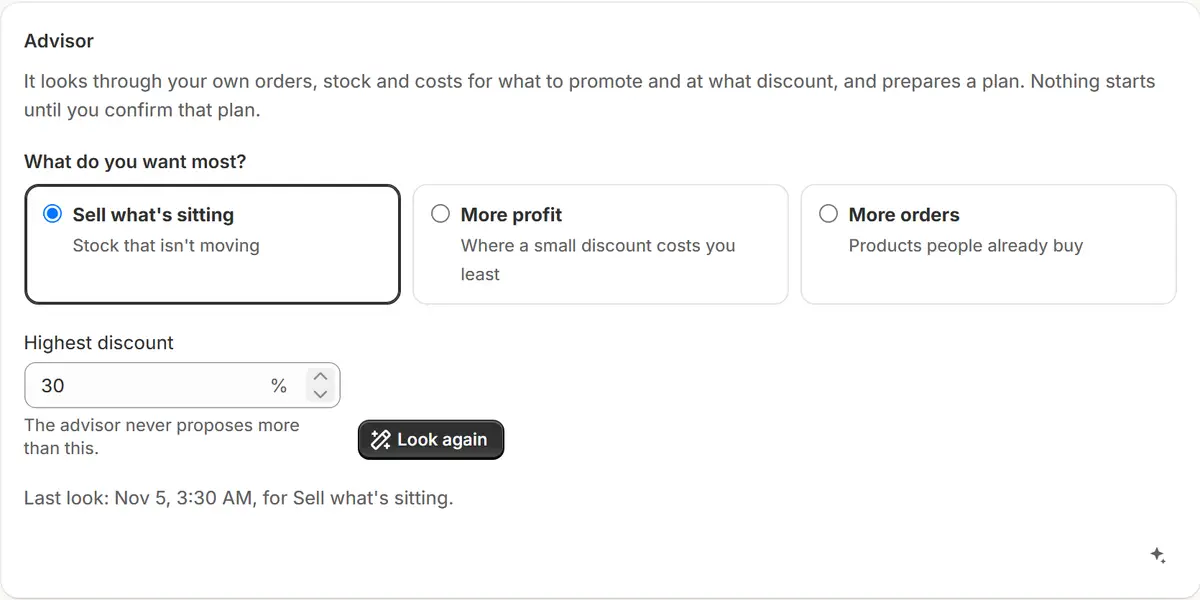
The app's real screen, with example store data. Find ideas
Press Find ideas (Look again afterwards). It leaves out products in a live or scheduled sale, products under your never-on-sale rule, and new products that haven't had their chance.
Read an idea
Each idea shows its products, the discount, why, what it takes to earn the same at that discount, and what similar sales of your store did.
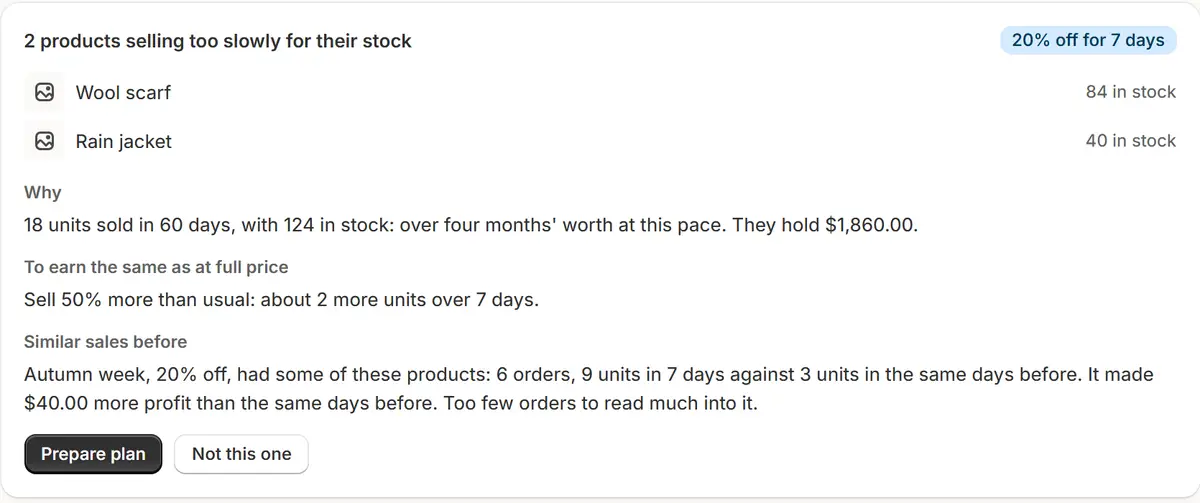
The app's real screen, with example store data. Prepare the plan
Prepare plan makes an ordinary sale plan starting tomorrow for 7 days. Change anything, then press Confirm and schedule.
Turn down what doesn't fit
Not this one turns an idea down; the Advisor won't propose those products in that kind of idea again. Bring them back undoes it.
Tips
- The Advisor works by rules, so it uses none of your AI requests.
- When the sale has ended, How earlier ideas went shows what was proposed and what happened.
What to check
- The discount never reaches a product's cost or your lowest price.
- With under 10 orders during a sale, the outcome gives counts and says there's too little data, not a percentage.
Common mistakes
- Expecting ideas in a store with under 10 orders in 60 days: there's too little to go by, and it says so.
- Reading the outcome as proof the discount did it: a season, an ad or a holiday would look the same, and the Advisor never claims it.
The plan you need
From the Business planThe Advisor is on Business. On other plans the tab says what it does and leads to the plans.
Your questions
Does the Advisor start sales by itself?
No. A sale starts only from the plan's Confirm and schedule.
Does it send my data to AI?
Opening the tab or pressing Find ideas sends nothing to AI. Asking the chat about the ideas sends product titles, stock and sales totals, with no customer data.
Related tutorials
- Plan the month with AIAI proposes your next 30 days of sales from holidays, slow stock and past results. Edit the dates, discounts and names, then approve them all.
- Clear slow stockSee which products haven't sold and the money held in them, then clear them with one sale, a discount that steps down, or a daily autopilot.
- Read sale resultsRead a sale's units, revenue and orders against the days before it, see its extra profit, compare sales in Results and share a sale report.
Learn more
- Use caseShopify Sales on Autopilot: Schedule, Run, RestorePut Shopify sales on autopilot: they start, end and restore every price on their own, with Shopify Flow triggers and AI that plans the month. Free plan.
- Use caseClearance Sale on Shopify: Clear Slow Stock Above CostClear Shopify products that aren't selling with a sale that stays above cost and puts prices back at the end. On Business, Slow stock finds them for you.
- Use caseDid Your Shopify Sale Make Money? See Each Sale's ResultsSee what each Shopify sale earned, and before it starts, how much more you need to sell to earn the same at a discount, from your products' cost.
- FeatureResults and slow stockResults for every sale, and the products that haven't sold, with the money held in them.
- FeatureAI sale builderType the sale you want. AI picks the products, the discount and the dates, shows every new price and waits for your confirm.
Run your next sale with Market Manager
Free plan. Paid plans start with a 7-day free trial.