Step by step
Open New sale
On Promotions → Sales press New sale, or use Quick start. From Shopify admin you can also select products on the Products page and choose Add to sale: the form opens with them picked.
Choose the products
Under Products to discount pick Products and collections I pick (then Select products or Select collections), Entire catalog or One collection. Pro adds one vendor, one product type, products with a tag and overstock.
Set the discount
A percentage off, an amount off, or a set price for every variant. Tick Round sale prices to end them in .99, .95 or a whole amount. Under Products already on sale, choose what happens to products marked down outside the app.
A drawing of the app's screen, with its real labels. Pick the dates
Set the start and the end, or click Use dates on an upcoming holiday or shopping event. Times are in the timezone from Settings. To run it regularly, choose Repeat.
Choose how it shows
Under Storefront display, show the original price crossed out or only the sale price. Show sale badge is on by default.
Check the preview
It lists every variant with its old and new price and says why any variant will be skipped. Pause in the Action column keeps a product out of the sale.
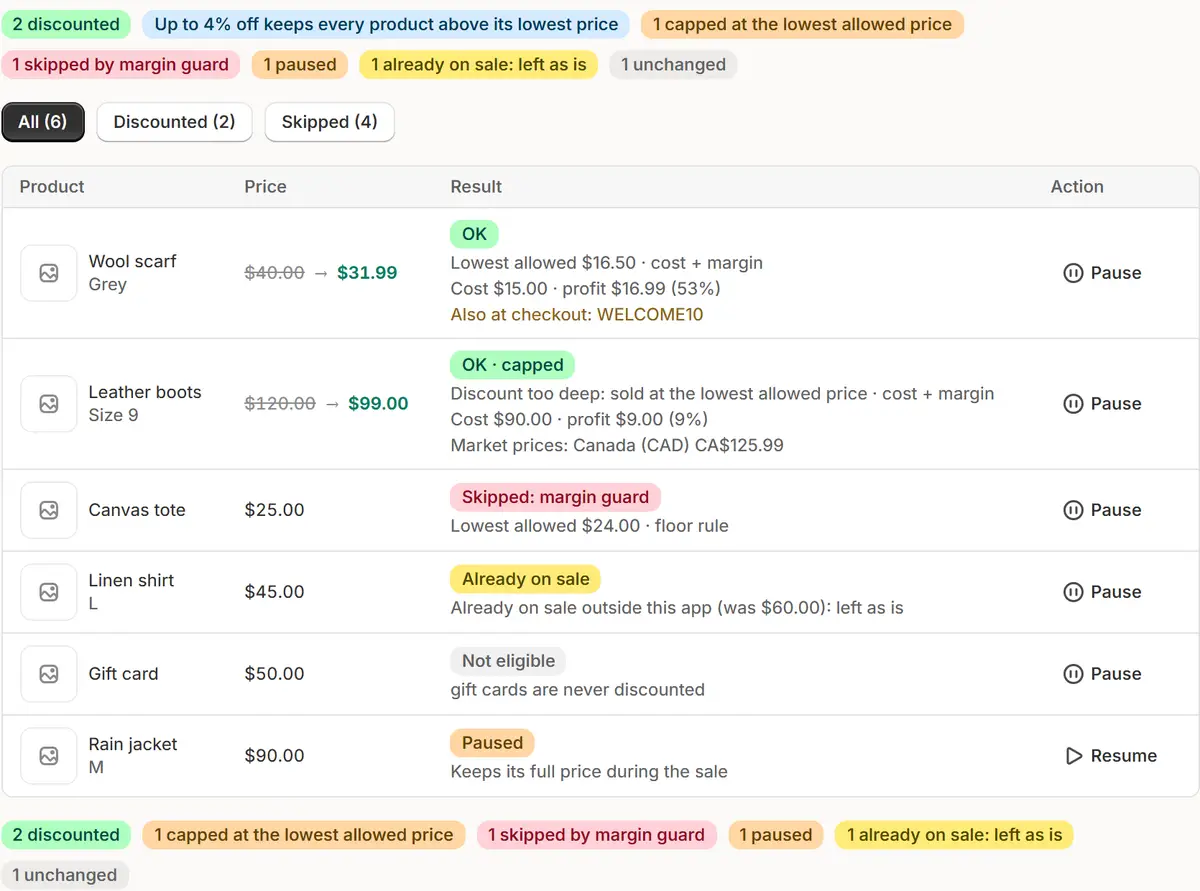
The app's real screen, with example store data. Schedule it
Click Schedule sale, or Save in Shopify's bar at the top of the page. Turn on Require approval if you want to approve it in the Sales list before it can start.

Tips
- With products picked, a line under Discount says how much more you need to sell to earn the same, for example “25% off: to earn the same, sell 34% more”. It needs a cost per item on products.
- A big sale takes a few minutes: Shopify takes new prices product by product. The preview says how long, so you can set the start that many minutes earlier.
- The four numbered steps at the top of the form say Done, Now or Next, and take you to their part of the form.
What to check
- The preview lists any discount codes or automatic discounts that would apply on top of the sale price at checkout.
- The Sales list shows the sale as Scheduled with a countdown to its start.
Common mistakes
- Putting the same product in two sales at the same time: the app refuses overlapping sales on the same variant.
- Pressing Schedule sale with something missing: nothing is scheduled, a banner lists what to fix and the fields turn red.
- Expecting gift cards to be discounted: they never are.
The plan you need
On the Free planEvery plan. Targeting by vendor, product type, tag or overstock is on Pro and Business.
Your questions
What happens if I change a price by hand during the sale?
Your price wins: the app leaves it, also when you edit the sale later, and its sale badge comes off.
What about products already marked down?
By default the sale leaves them as they are, so there's no discount on top of a discount. You can choose Discount from the compare-at price or Discount them further instead.
Will discount codes apply on top of the sale price?
Yes, if the code covers those products. The preview warns you about every such discount before launch.
Related tutorials
- Edit, pause and repeat salesChange a sale while it runs, move its dates on the timeline, pause one product or the whole sale, make it repeat, and run an ended sale again.
- Holiday sales and templatesPlan Black Friday, Christmas and other holiday sales from Coming up, the Sales calendar and ready templates, and save your own sale as a template.
- Set up price protectionSet a maximum discount, a margin over cost and floor rules, add costs per item, and block discount codes on sale items, so every sale keeps your floor.
Learn more
- Use caseHow to Schedule a Sale on Shopify, Step by StepHow to schedule a sale on Shopify so prices drop and come back on their own: what Shopify offers, what it doesn't, and the steps with Market Manager.
- Use caseCompare-at Price on Shopify: Show the Saving, Then UndoShow the original price crossed out during a Shopify sale with compare-at prices, and put every price and compare-at back when the sale ends.
- Use caseShopify Discount Scheduler: Sales That Start and End on TimeA discount scheduler for Shopify: bulk sales start and end on time, compare-at shows the saving and every original price comes back. Free plan.
- FeatureScheduled salesPick the products, the discount and the dates. The sale changes prices on time and puts every saved original back when it ends.
- FeaturePrice protectionSet your rules once: margin over cost, a lowest price, a largest discount. Every sale keeps them, and every change can be undone.
Run your next sale with Market Manager
Free plan. Paid plans start with a 7-day free trial.