Step by step
Open Promotions → Sales
Until your first sale, Sales shows one idea and Create with AI under it, with a request ready from your own collections, for example “20% off Boots this weekend”.
Build it with AI
Press Build the sale as it is, or change the words first. AI finds the products, the discount and the dates, and shows the plan.
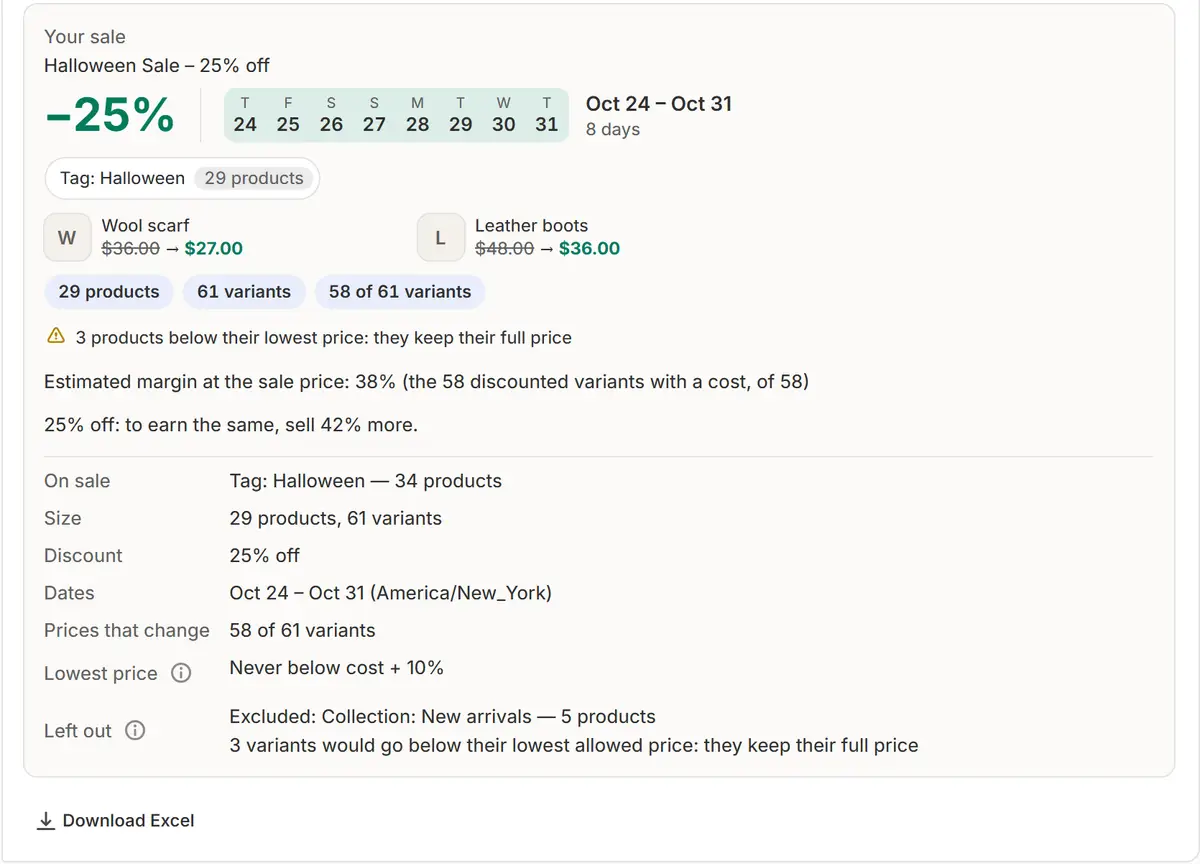
The app's real screen, with example store data. Or build it with buttons
Prefer buttons? Pick products by hand in three steps: What goes on sale? (All products, one of your biggest collections, or Pick products…), How much off? (10%, 15%, 20%, 25% or Other) and When? (Now, for a week, This weekend or Pick dates). Then press See the prices.
Check the prices
See what's on sale and how many prices change. No price goes below your price floor.
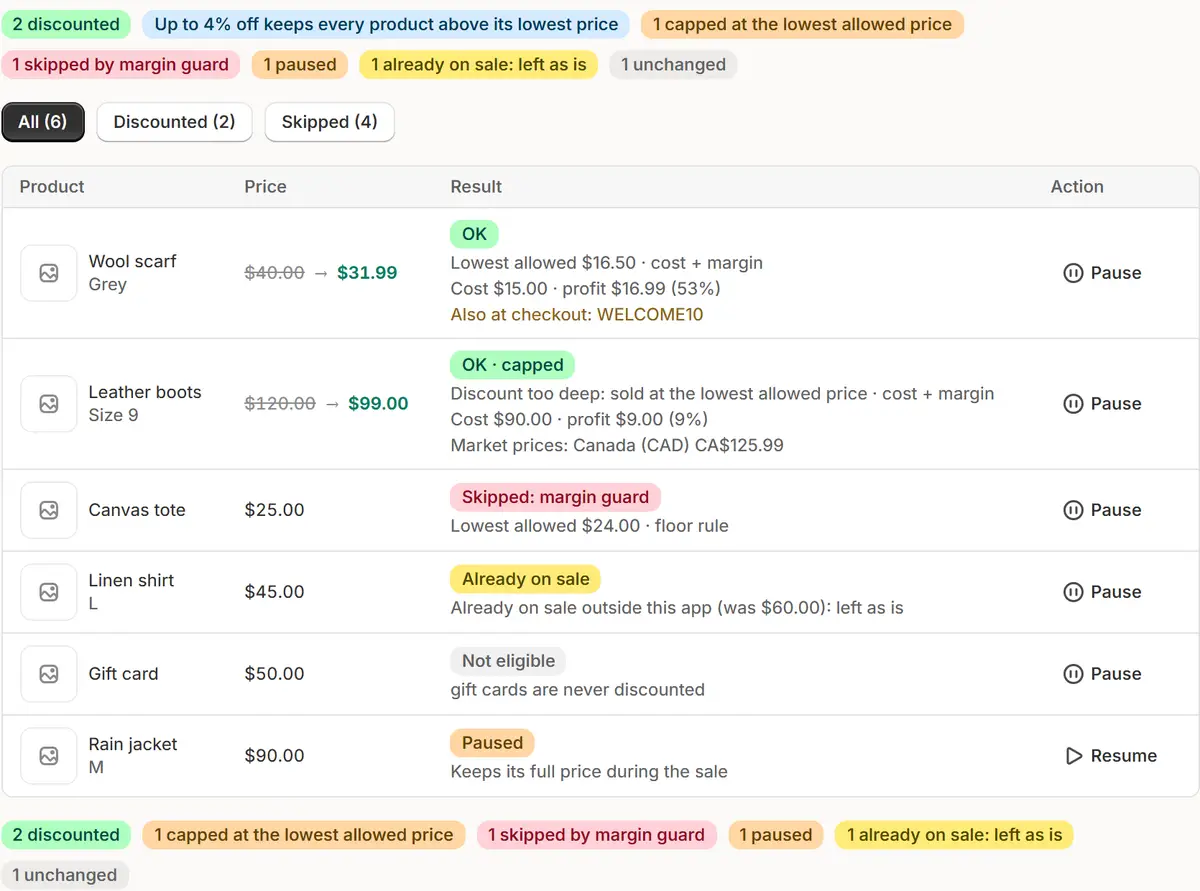
The app's real screen, with example store data. Start the sale
Press Confirm and schedule in the chat, or Start sale (Schedule sale when it starts later).
Watch it go live, then end
A green note at the top of Sales says how many prices changed and when they come back, with See it in your store. When the sale ends, it says all the prices are back.

Tips
- Until your first sale, everything else on Sales, such as Store check, Plan the month and templates, waits folded under More ways to start.
- A store with no products yet sees Add products, which opens Shopify's new product page.
- You don't need to keep the app open: start and end happen on their own.
What to check
- See it in your store: the product shows its sale price.
- When the sale ends, the note on Sales says every price is back.
Common mistakes
- Picking more than 25 products on the Free plan: a sale on Free holds up to 25; Pro and Business have no limit.
- Expecting a sale badge in the store before turning the badges on in your theme (Promotions → Badges → Turn on in theme).
The plan you need
On the Free planEvery plan. Free runs one sale at a time with up to 25 products; Pro and Business have no limit on sales or products.
Your questions
What if I change my mind after starting?
Pause puts the original prices back at once, and Resume discounts them again. Cancel puts the prices back and closes the sale.
Do I have to keep the app open while the sale runs?
No. The sale starts and ends on its own, and the prices come back at the end.
Related tutorials
- Schedule a sale step by stepThe full sale form: products, the discount, rounding, the dates, how the sale shows, the price preview and Schedule sale, with what each option does.
- Create a sale with AIType the sale you want, and AI builds it from your own collections, tags and holidays. Change the plan in place and confirm. Nothing starts before that.
- Set up price protectionSet a maximum discount, a margin over cost and floor rules, add costs per item, and block discount codes on sale items, so every sale keeps your floor.
Learn more
- Use caseHow to Schedule a Sale on Shopify, Step by StepHow to schedule a sale on Shopify so prices drop and come back on their own: what Shopify offers, what it doesn't, and the steps with Market Manager.
- Use caseAI Sale Builder for Shopify: Describe It, Check, ScheduleDescribe a Shopify sale in your own words. AI builds it with the products, discount and dates and shows every new price before anything changes.
- Use caseRestore Original Prices After a Shopify SalePut every Shopify price back after a sale: originals are saved before the sale starts and restored when it ends, with History and Undo.
- FeatureScheduled salesPick the products, the discount and the dates. The sale changes prices on time and puts every saved original back when it ends.
- FeatureAI sale builderType the sale you want. AI picks the products, the discount and the dates, shows every new price and waits for your confirm.
Run your next sale with Market Manager
Free plan. Paid plans start with a 7-day free trial.