Step by step
Open the chat on Sales
The field at the bottom of the window opens Create with AI on Sales, with the sale form beside it. Describe it to AI on New sale puts the cursor there too.
Describe the sale
Type it in any language, for example “25% off everything tagged Winter for Halloween, except new arrivals”, and press Enter or Create with AI.
Or pick groups
Groups, next to Create with AI, opens Your catalog: + puts a collection, tag, vendor or type in the sale, − leaves it out.
Answer if it asks
When it can't tell which products, discount or dates you mean, AI asks, with a row of answers for each missing part. Tap them, then press Enter or Continue.
Change the plan in place
Your sale sums up the plan. Change the Discount slider, drag the Dates, edit Filters, or tap Products tiles to put them in or take them out. Each change recounts at once, without an AI request.
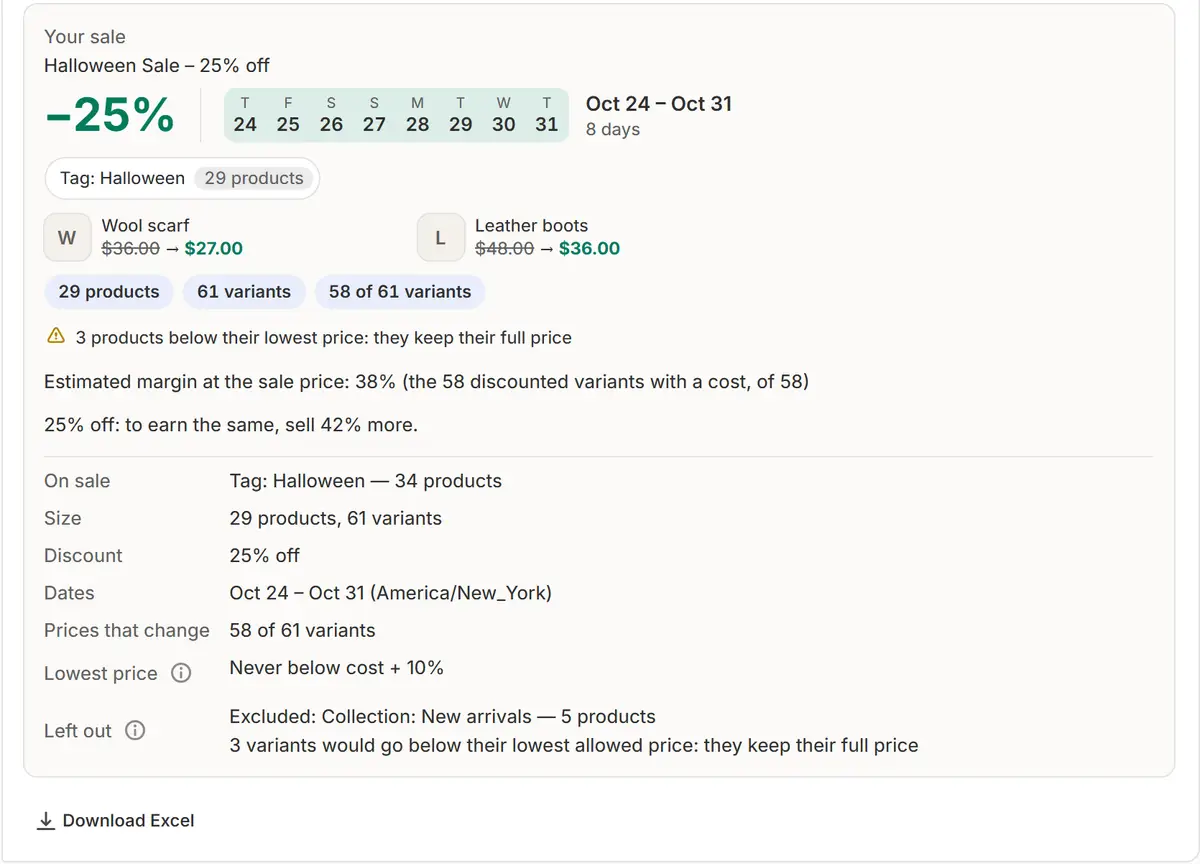
The app's real screen, with example store data. Apply an idea
Make it work better lists 2–4 improvements, such as moving the sale to an upcoming holiday or prices ending in .99. Apply changes the sale at once.
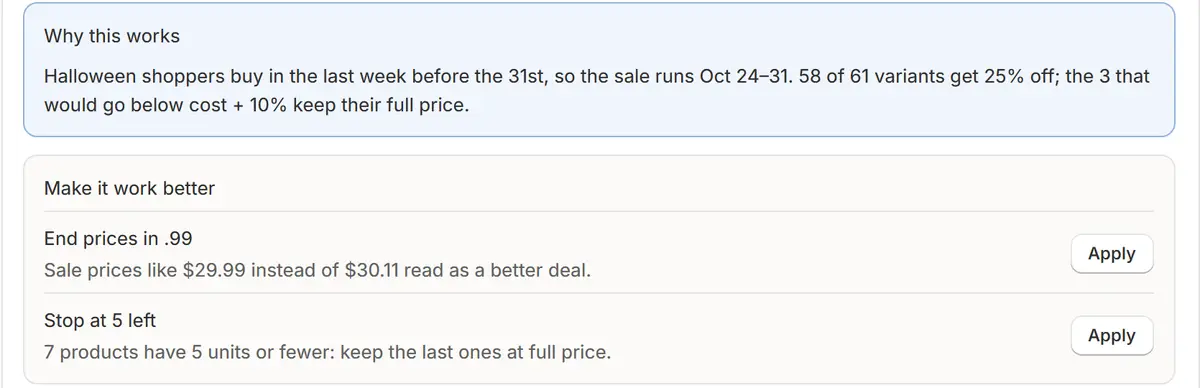
The app's real screen, with example store data. Confirm and schedule
At the end of the chat, under Your sale, press Confirm and schedule. The same checks as Schedule sale run first.
Tips
- Name a holiday in any language: AI finds it in your store's holiday calendar and uses its suggested dates.
- Change it here opens the discount type, the sale badge and Require approval; Open full form shows every field of the sale form.
- Prices by variant, folded under the plan, lists every product with its price now and in the sale, and Exclude keeps one at full price.
What to check
- Why this works: when nothing matched your words exactly, it says which group it took, so you can check it.
- How many variants price protection keeps at full price.
Common mistakes
- Expecting AI to invent a collection or tag: it uses only your real ones, and asks when nothing matches.
- Forgetting the monthly allowance: AI requests are counted against your plan, and the count shows next to the field.
The plan you need
On the Free planEvery plan. AI requests a month: 20 on Free, 200 on Pro and 1,000 on Business.
Your questions
Can AI change my prices without asking?
No. It prepares the plan and every new price; prices change only after you press Confirm and schedule.
What is sent to AI?
Your request and your catalog's names, such as collections, tags, vendors and product types, with counts, holidays and planned sales. No customer data and no single order.
Can the chat build deals too?
Yes. Ask for example “buy 2, get the third free on socks”. AI shows the deal and Create the deal sends it to Shopify.
Related tutorials
- Teach the AI your storeTell the AI what you sell and what your words mean, give it rules such as never discount a brand, and see, change or delete what it remembers.
- Your first saleYour first sale in about a minute: pick products, the discount and the dates, check every price, start it, and see every original price come back.
- Plan the month with AIAI proposes your next 30 days of sales from holidays, slow stock and past results. Edit the dates, discounts and names, then approve them all.
Learn more
- Use caseAI Sale Builder for Shopify: Describe It, Check, ScheduleDescribe a Shopify sale in your own words. AI builds it with the products, discount and dates and shows every new price before anything changes.
- Use caseBlack Friday Sale on Shopify: Plan It Once, Let It RunSchedule a Black Friday and Cyber Monday sale on Shopify: prices drop at the start, a countdown runs and every original price comes back after.
- Use caseBulk Discounts on Shopify: Put a Whole Collection on SaleDiscount a whole collection, tag, vendor or the entire Shopify catalog at once, check every new price, and have every original come back after.
- FeatureAI sale builderType the sale you want. AI picks the products, the discount and the dates, shows every new price and waits for your confirm.
Run your next sale with Market Manager
Free plan. Paid plans start with a 7-day free trial.