Step by step
Ask a question that needs counting
In the chat, ask for example “Which products are bought together?”, “forecast December's sales”, “which sale made the most profit?” or “make a report for my accountant in Excel”. For a question that needs counting across many rows, statistics, a forecast or a file to make, the chat runs a deep calculation by itself; there's no separate button.
Or attach a file
Attach a supplier's price list as CSV or Excel and ask, for example, “find where the markup is under 30%”: the calculation works on the file together with your store's data.
Watch it work
Calculating ticks its steps as they pass: Reading the data, Calculating, Drawing, Building the file. The AI writes a short Python program and runs it in Anthropic's sandbox, a separate computer with no internet and no access to your store.
Read the card
Deep calculation and the seconds it took, then the result in one line and its main number, the chart with Show as table, Download PNG and Download Excel, two to four findings, and the files it made, each with Download.
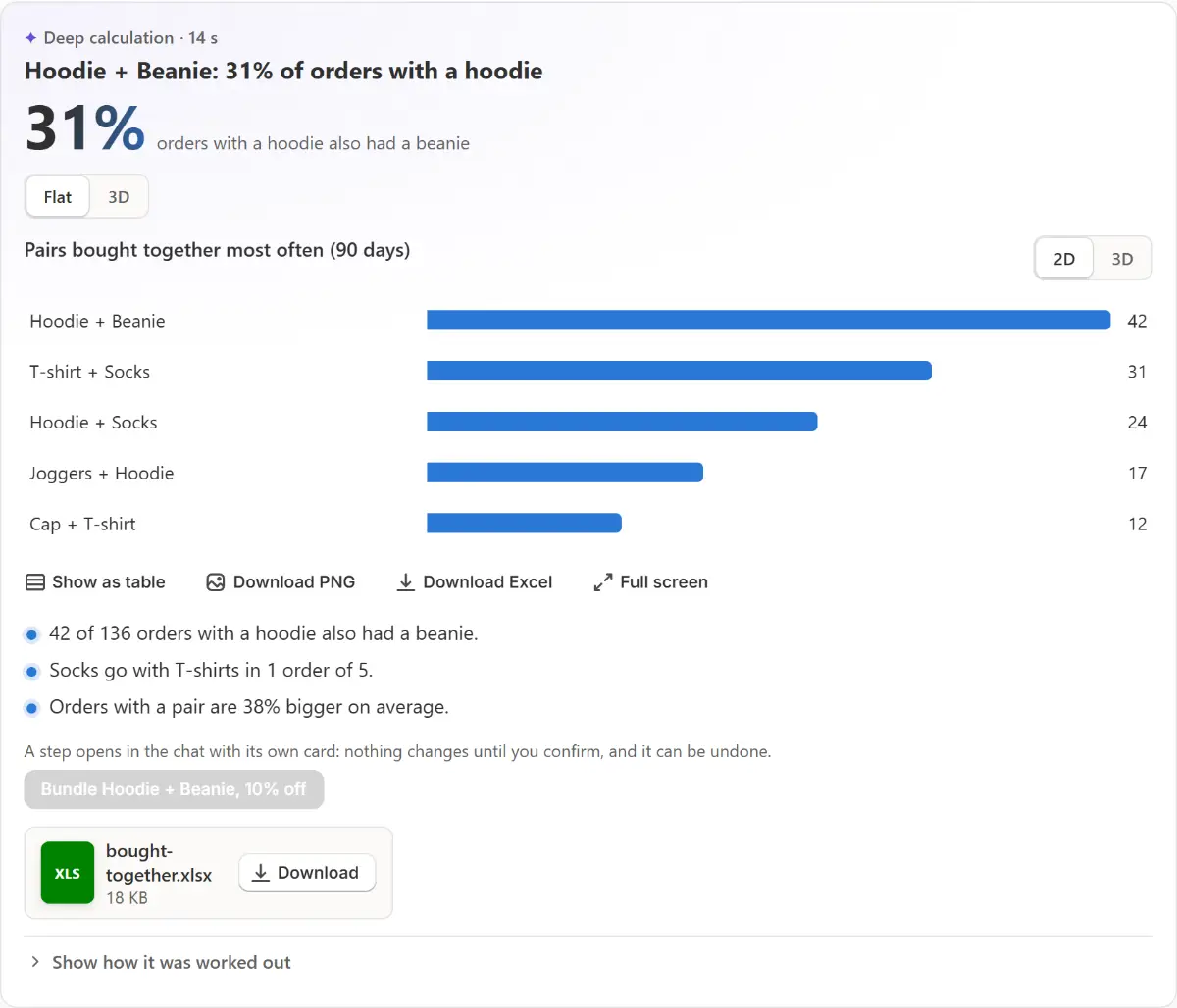
The app's real screen, with example store data. Turn it in 3D
Where it helps, 3D next to Flat shows what's bought together as a network, profit by price and discount as a surface, groups of products as a cloud, or a forecast with its range. Flat keeps the exact numbers.
See how it was worked out
Show how it was worked out says in plain words what it took, what it did and the data it read. The Python itself is folded once more under Show the code, with Copy.
Take the next step
When the result suggests a step, such as a bundle, a sale or new prices, the card shows it as a button. It goes to the chat, where the usual card shows exactly what changes and waits for Confirm, with Undo.

Tips
- The files a calculation made stay in the app for 30 days, and the result stays in the conversation after a reload.
- The Plan page shows how many deep calculations are left this month.
- Orders reach back as far as the app keeps them: the last 60 days from Shopify, longer once Price history has kept them.
What to check
- The main number and the findings answer the question you asked.
- Show how it was worked out lists the data it read, such as order lines, products and variants with their costs.
Common mistakes
- Asking about profit when products have no cost: the table shows the cost as none and no profit, with a button to set product costs.
- Expecting the calculation to change your store: it can't. A suggested step goes to the chat and waits for your Confirm.
The plan you need
On the Free planEvery plan, counted apart from AI requests: 3 a month on Free, 30 on Pro and 100 on Business. One that fails, runs out of time or finds no data isn't counted. Changing the store from a suggested step is on Pro and Business.
Your questions
What data does it use?
An export of your store's data: products, variants with their cost, the orders' lines, sales by day, price history and the app's sales. Never a customer's name, email, phone or address.
What happens when the month's calculations are used up?
The chat says so and answers with a report or a chart instead. The count starts again on the 1st of the month.
Does Anthropic keep my data?
The files sent for the calculation are deleted there as soon as it ends. The files it made stay in the app for 30 days.
Related tutorials
- Charts in the AI chatAsk the chat for a chart of your sales, orders, stock or a product's price. Switch 2D and 3D, show it as a table, and download it as a PNG or Excel file.
- Conversations and files in the chatKeep each topic in its own conversation tab: rename, pin, close and find it again. Attach a photo, PDF, CSV or Excel file, and know what the app keeps.
- Read sale resultsRead a sale's units, revenue and orders against the days before it, see its extra profit, compare sales in Results and share a sale report.
Learn more
- Use caseDid Your Shopify Sale Make Money? See Each Sale's ResultsSee what each Shopify sale earned, and before it starts, how much more you need to sell to earn the same at a discount, from your products' cost.
- FeatureOrders and reportsAsk the chat how a week went, what sells best or what runs out soon. The answers come from your own orders and stock, as a chart or a table you can download.
Run your next sale with Market Manager
Free plan. Paid plans start with a 7-day free trial.