Step by step
Open the chat
The chat is on the right of every page. Drag its left edge to make it wider or narrower; double-click the edge for the usual width. Fold, at the top right, folds it into a strip at the window's edge; press the strip and the same conversation opens.
Start a new conversation
+ starts a new conversation in a new tab, and the one you were in stays. After its first answer the chat gives it a short name of 2–4 words. There's never more than one empty one: + again opens it.
Rename, pin and close
The pencil renames the conversation you're in; double-clicking its tab does too. ⋯ (Conversation options), or a right click on a tab, has Rename conversation, Pin, Close tab, Clear chat… and Delete conversation…. A pinned one comes first, with no ×, and is always kept.
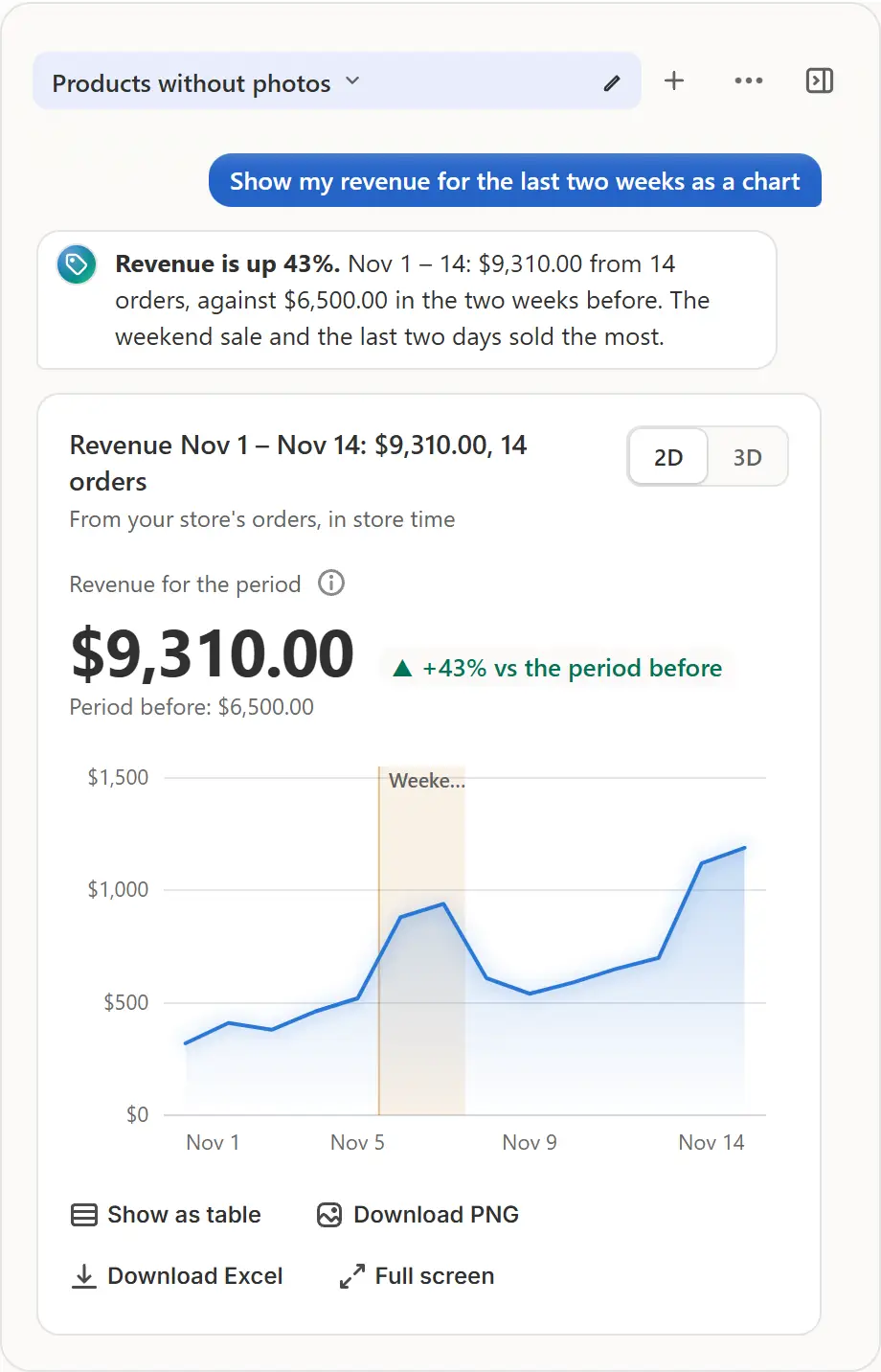
The app's real screen, with example store data. Find an old conversation
× closes a tab and the conversation stays under Recent. Press the conversation's name (All conversations) for the list: a search box, the ones open now and the recent ones, pinned first. One press switches, at the last answer. Drag a tab to change the order.
Attach a file
Photo or file (PDF, CSV, Excel), next to the field, attaches a photo, a PDF up to 4 MB, or a CSV or Excel table (.xlsx, its first sheet) up to 2 MB; you can also paste or drop it into the field. Ask, for example, “sum up this supplier's price list” or “which items got dearer?”.
Know what's kept
An attached file goes to Anthropic's Claude with that message only and isn't stored by the app: just its name stays in the conversation. Your conversations, their order, the pins and the open one are kept for your store: after a reload or on another computer the same one is open, at its last message.

Tips
- Clear chat empties a conversation and its tab stays; Delete conversation removes it whole. Both ask first.
- Up to 100 conversations are kept for your store; past that, the oldest closed ones that aren't pinned go first.
- A chart or a deep calculation stays in its conversation and is drawn again after a reload.
- Reading a file changes nothing in your store.
What to check
- After a reload, the same conversation is open at its last message.
- The file's name shows next to the field and in your message.
Common mistakes
- Expecting to open an attached file again from the conversation: the app doesn't keep it, only its name.
- Attaching a file the chat doesn't read: it takes a photo, a PDF, CSV or Excel (.xlsx), and says when a file is too large.
The plan you need
On the Free planEvery plan. Each question you send counts as one AI request: 20 a month on Free, 200 on Pro and 1,000 on Business.
Your questions
Are old conversations deleted after a while?
Not by time. Up to 100 are kept for your store; Delete conversation removes one, and removing the app deletes all of them.
Does AI read a long conversation whole each time?
The newest answers go to AI whole and the earlier ones as a short summary, so a reply still starts at once and keeps the thread.
Related tutorials
- Create a sale with AIType the sale you want, and AI builds it from your own collections, tags and holidays. Change the plan in place and confirm. Nothing starts before that.
- Charts in the AI chatAsk the chat for a chart of your sales, orders, stock or a product's price. Switch 2D and 3D, show it as a table, and download it as a PNG or Excel file.
- Deep calculationsAsk the chat what's bought together, for a forecast or a report in Excel: it works it out exactly in Python on your store's data, with a chart and files.
Learn more
- Use caseAI Sale Builder for Shopify: Describe It, Check, ScheduleDescribe a Shopify sale in your own words. AI builds it with the products, discount and dates and shows every new price before anything changes.
- FeatureAI sale builderType the sale you want. AI picks the products, the discount and the dates, shows every new price and waits for your confirm.
Run your next sale with Market Manager
Free plan. Paid plans start with a 7-day free trial.