Step by step
Pick a period
At the top of Overview choose Today, 7 days, 30 days or 90 days. The numbers follow it; Updated says when your orders were last read.
Read the numbers
Sales (your orders' total), Sold on promotion (units sold while one of the app's sales ran on them), Promotions on and scheduled, and Products to check from the catalog check.
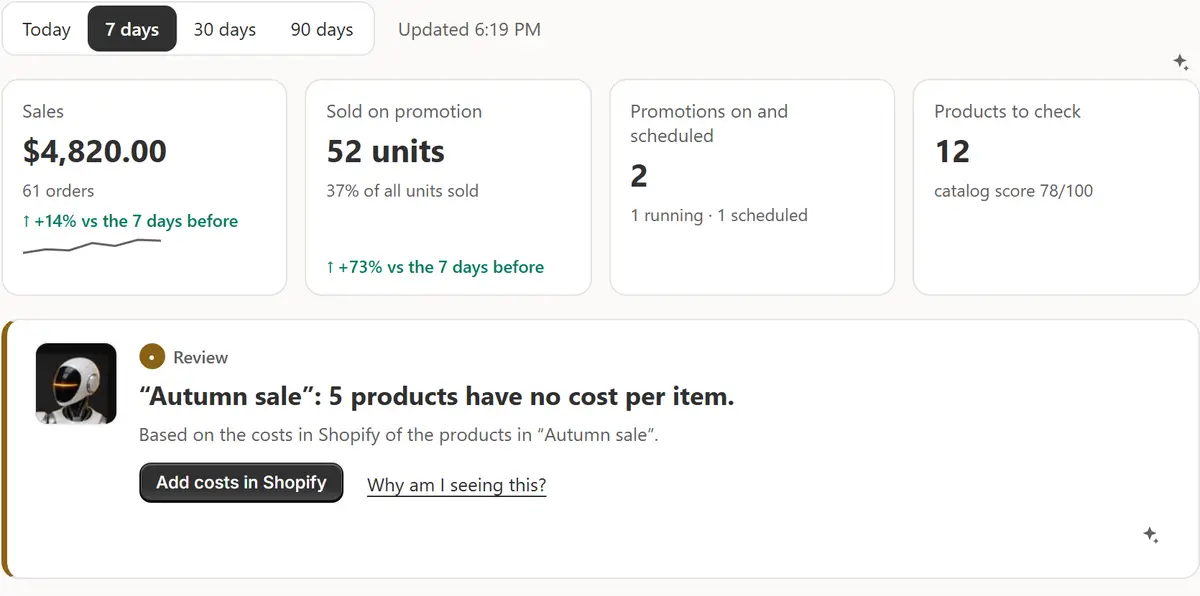
The app's real screen, with example store data. Act on the main insight
One card says the most important thing now, what it's based on and one action. Why am I seeing this? explains where it comes from.
Work through today's actions
Up to three more things to do, each with its priority (High, Medium, Low) and a button. Later puts one off until tomorrow; Done takes it away.
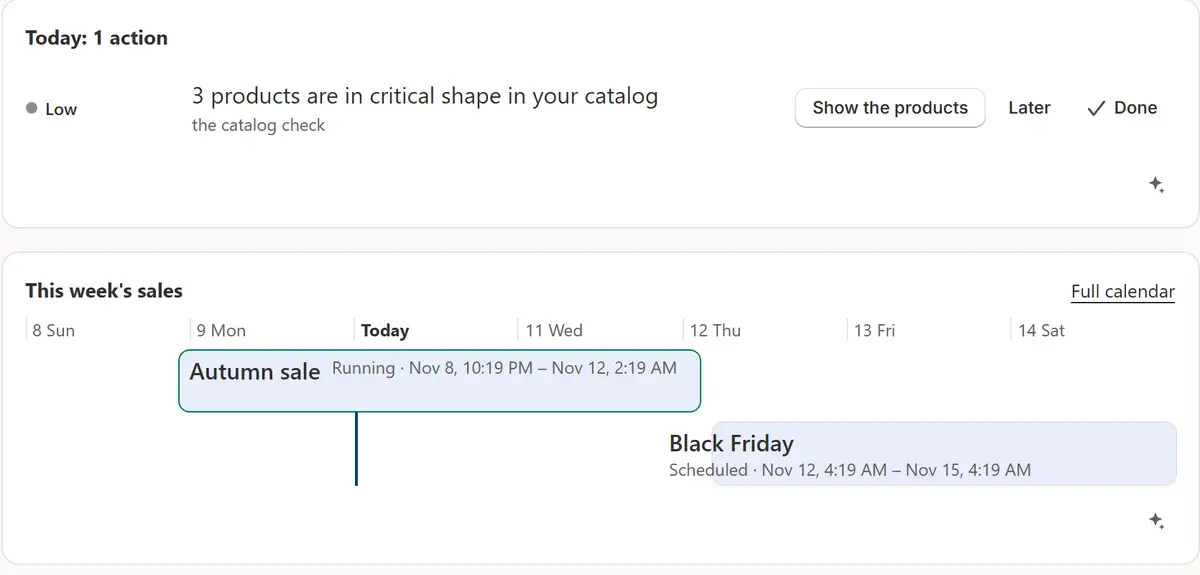
The app's real screen, with example store data. Use the menu
Shopify's menu holds Overview, Promotions, Products, Results, AI, Settings and Help. Promotions has the tabs Sales, Advisor, Deals, Badges, Slow stock, Calendar and Store check; Products has Overview, To check, Product text and Price protection.
Keep an eye on the status line
Under the Promotions tabs, on every page, a line says whether the app is working, with Check my store, Undo and History.
Tips
- The sparkle icon, Ask AI, on a big block opens the chat with a ready question that already holds the block's numbers. Nothing is sent until you press send.
- Press the robot for its menu: What should I do next? gives one step with a button to it. The robot never changes anything by itself.
- History isn't in the menu: the status line's History, Settings → History and the card on Overview lead there.
What to check
- The status light is green: the app checked in the last 2 minutes whether a sale should start or end.
- This week's sales strip shows what just ended, what's running and what's scheduled.
Common mistakes
- Looking for profit on Overview: it isn't shown there, because without every product's cost it would be a guess. Results shows it.
- Pressing Done on an action you haven't done: it goes away while it means the same. History's Undo brings it back.
The plan you need
On the Free planEvery plan. Sections that take a higher plan say which one, and their tab still opens and explains what it does.
Your questions
Where do Overview's numbers come from?
Your store's orders read from Shopify for the period, with nothing about the buyers, and the app's own records: sales, the catalog check, texts written and your plan.
Can I turn the robot off?
Yes. Show the robot in Settings → Promotions turns it off everywhere; the line that says what each tab does stays.
Related tutorials
- Install and set upInstall Market Manager, pick a plan, and follow the Setup guide on Overview: price protection, a first sale, badges in your theme and a Store check.
- Your first saleYour first sale in about a minute: pick products, the discount and the dates, check every price, start it, and see every original price come back.
- History and UndoSee every change the app made, who made it and when, and undo one change or a whole group, with Ctrl+Z, from History or from the chat.
Learn more
- Use caseDid Your Shopify Sale Make Money? See Each Sale's ResultsSee what each Shopify sale earned, and before it starts, how much more you need to sell to earn the same at a discount, from your products' cost.
- FeatureScheduled salesPick the products, the discount and the dates. The sale changes prices on time and puts every saved original back when it ends.
- FeatureResults and slow stockResults for every sale, and the products that haven't sold, with the money held in them.
Run your next sale with Market Manager
Free plan. Paid plans start with a 7-day free trial.